

Blog
Choosing the right ebook format for Kindle in 2026

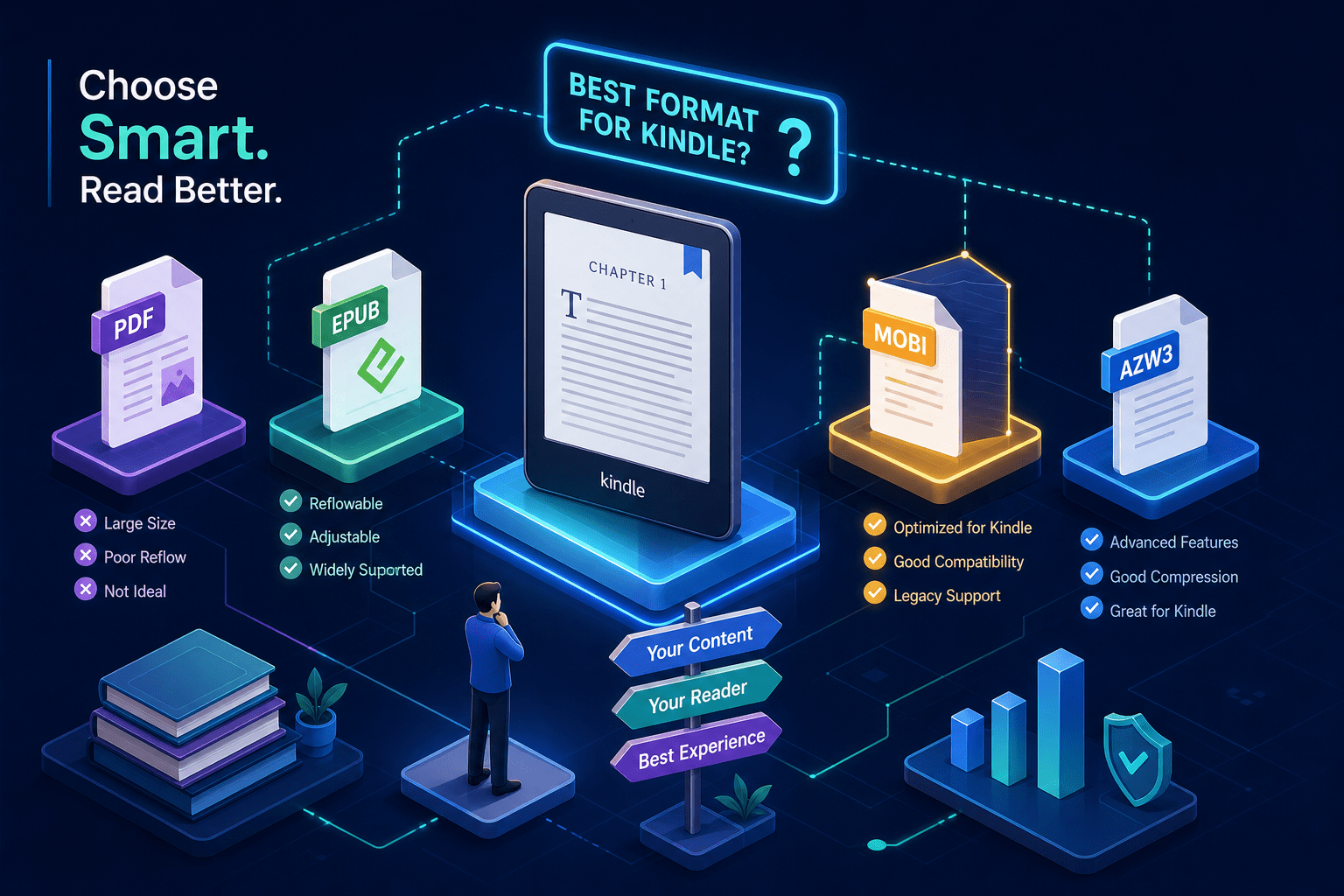
You’ve finished your manuscript, set up your KDP account, and landed on the upload screen. Then you see the format options: DOCX, EPUB, KPF, MOBI, HTML. You’ve heard people talk about AZW3 and fixed-layout ebooks, but no one’s given you a clear answer on what to actually upload. That moment of confusion trips up more authors than any other step in the publishing process.
Getting the ebook format for Kindle right before you upload saves you from rejected submissions, broken tables of contents, and layouts that look fine on your screen but fall apart on a Kindle Paperwhite. If you’re formatting your own book, this guide walks you through every decision you need to make, format selection, file preparation, validation, and the formatting rules that determine whether your file clears KDP on the first try.
What KDP accepts: the current list of Kindle-compatible file formats
Amazon KDP accepts more formats than most authors realize, but not all of them are equal. Knowing which ones apply to your workflow prevents wasted effort on formats that don’t deliver reliable results.
DOCX and EPUB: the two formats most authors should use
DOCX is the beginner-friendly option. If you wrote your manuscript in Microsoft Word or Google Docs, you already know how to produce this file. KDP’s conversion engine handles DOCX reliably for most text-heavy books, and no additional tools are required. EPUB is the preferred format for professional workflows because it gives you finer control over formatting through HTML and CSS, and it works across every major publishing platform beyond Amazon.
Neither choice is wrong. KDP converts both DOCX and EPUB to its internal KFX format automatically during the upload process. The difference is that EPUB gives you more predictable output because you control the source formatting directly. Whichever you use, run the file through Kindle Previewer before uploading to catch rendering issues before they reach your product page.
KPF, MOBI, HTML, and the rest of the accepted list
KPF is the output file produced by Kindle Create, Amazon’s free formatting tool. It’s not a format you build manually; it’s what Kindle Create generates after you format your book inside the application. For authors who want a template-guided experience with accurate previewing inside the KDP ecosystem, KPF is a solid choice.
MOBI deserves a clear note here. As of March 2025, Amazon no longer accepts MOBI for fixed-layout ebooks. It’s still accepted for reflowable titles, but the format is being phased out and offers limited styling compared to its successors. HTML, RTF, TXT, and PDF round out the accepted list, with PDF uploads restricted to specific languages, including English, French, German, Spanish, Portuguese, and Italian, among others. For the complete and current list, KDP’s Help documentation on PDF upload requirements is the definitive source. For most authors, the decision comes down to DOCX, EPUB, or KPF. Ebook Formatting Guide: How to Format Your Book for KDP
EPUB, AZW3, MOBI, and KPF: what each format actually does
Understanding what these formats are capable of helps you make a smarter upload decision and set realistic expectations for how your book will render across devices.
Why EPUB is the professional starting point for Kindle publishing
EPUB is built on open web standards: HTML5, CSS3, and XML. That foundation means it works across Apple Books, Kobo, Google Play Books, and Amazon without any vendor lock-in. When you upload an EPUB to KDP, you’re uploading a source file that Amazon converts to AZW3 or KFX depending on the reader’s device. This conversion is reliable for most books, though complex JavaScript interactions may not survive the process intact. The fix is straightforward: keep your EPUB formatting clean and standards-compliant from the start. Formatting for Kindle: A Step-by-Step Ebook Formatting Guide
AZW3 vs. MOBI: the Amazon-native formats compared
AZW3, also called KF8, is Amazon’s current proprietary format. It supports HTML5 and CSS3 subsets, embedded fonts, and features like footnote pop-ups that enhance the reading experience on modern Kindle devices. If you’re reading a Kindle ebook on a Paperwhite or the Kindle app, you’re almost certainly reading an AZW3 or KFX file. MOBI is the legacy predecessor: limited CSS support, no rich media, and no meaningful advantage for new submissions in 2026.
KPF sits in a different category. It’s not a format you build or edit directly; it’s what Amazon generates through Kindle Create to ensure formatting accuracy before converting to KFX on newer devices. Think of it as a quality-checkpoint format rather than a publishing format in the traditional sense. Authors who want the deepest preview accuracy inside the KDP ecosystem use Kindle Create and upload KPF. Everyone else uploads EPUB or DOCX and lets Amazon handle the rest.
Reflowable vs. fixed-layout: matching the right structure to your book type
This is one of the most misunderstood decisions in Kindle formatting. Most authors default to reflowable without understanding what fixed-layout is or when it applies, partly because both formats can originate from the same Word document with no visible difference until conversion.
When reflowable is the right choice (and why it covers most books)
Reflowable ebooks adapt to the reader’s screen size, font preferences, and orientation. When someone increases the font size on their Kindle, the text reflows across pages accordingly. Novels, memoirs, business books, self-help titles, and most non-fiction belong in reflowable format. Reflowable ebooks are widely supported across Kindle devices, phone apps, and the Cloud Reader, though specific features, such as Enhanced Typesetting, advanced CSS, or KFX-specific functionality, can vary by device and app version. For text-heavy books, the format reaches the widest possible audience with the fewest compatibility constraints.
When fixed-layout earns its place: illustrated books, comics, and children’s titles
Fixed-layout treats each page as a locked visual unit. The position of every image, text block, and design element stays exactly where you placed it, regardless of the screen size. This is the correct choice for children’s picture books, graphic novels, manga, and coffee table books where the relationship between images and text is part of the reading experience itself.
The trade-off is real and worth knowing before you commit. Fixed-layout has reduced device compatibility on Kindle, particularly on small-screen devices and iPhones. Your distribution reach shrinks when you choose fixed-layout, so it should only be used when the content genuinely requires it. For children’s picture books, the visual precision is worth the compromise. For a business book with a few charts, reflowable with inline images is the better call.
KDP’s formatting requirements for fonts, margins, and images
Formatting rules at the element level determine whether your file passes KDP’s validation or comes back with errors. These are the specifics that catch authors off guard.
Typography and paragraph formatting rules that KDP enforces
Chapter titles must be styled using Heading 1 in Word or your EPUB editor, not manually bolded text. KDP uses heading styles to build the table of contents and Kindle navigation. A chapter title that looks like a heading but isn’t styled as one will break navigation entirely. For paragraph indentation, use Word’s built-in indent style. The Tab key produces indents that look correct on your screen but get stripped out completely by Kindle’s conversion engine.
Standard, readable fonts like Georgia, Times New Roman, and Calibri are the safest choices. Line spacing between 1.15 and 1.5 works well for most ebook text. Apply all formatting through the Normal style rather than manual overrides, which create conflicting style rules that cause unpredictable rendering on different Kindle devices. For a quick checklist and practical tips, see our Top 10 Kindle Formatting Tips for a Professional Ebook.
Image resolution, embedding, and bleed requirements
KDP recommends 300 DPI for interior images to ensure quality rendering across Kindle devices. All images must be embedded directly in the manuscript file, not linked to an external location, linked images don’t travel with the file and appear as broken placeholders after conversion. For fixed-layout or print titles with images that extend to the page edge, KDP requires a 0.125-inch bleed extension beyond the trim line. Unembedded or low-resolution images trigger validation errors in both cases, so checking image settings before upload is worth the time.
Converting and validating your file before uploading to KDP
Producing a clean, upload-ready file is not guesswork. The right tools make the validation step straightforward and catch problems before they reach Amazon’s servers.
Tools that produce reliable, KDP-ready conversions
Kindle Previewer is the essential validation step before any upload. It converts your EPUB or DOCX to Kindle format locally and shows exactly how the book renders across different device sizes, including Kindle Paperwhite, Fire tablet, and the phone app. It catches TOC errors, font rendering issues, and image displacement before they reach KDP. According to KDP’s own guidance, previewing your file before submission is a strongly recommended best practice, and skipping it is the most common reason clean-looking files generate post-publication complaints.
Kindle Create is the right tool for authors who want a guided, template-based formatting experience. It outputs KPF directly and previews your book accurately within the KDP ecosystem. For authors working outside the KDP upload process who need EPUB to AZW3 conversion for metadata management or format archiving, Calibre is a free desktop tool that handles the job reliably. Calibre’s conversion preserves TOC structure and CSS styling in most cases, though reviewing the output in the book editor and running it through Kindle Previewer as a final check is still the right call.
Common upload errors and how to eliminate them before submission
The failure points that generate the most rejections follow a consistent pattern. Missing heading styles are the most common culprit: without a proper Heading 1 style applied to each chapter title, the table of contents breaks entirely. Tab-indented paragraphs are the second issue, they look correct on screen but get stripped by Kindle’s conversion engine, producing walls of unindented text. Unembedded or low-resolution images produce broken placeholders or validation failures, and submitting a MOBI file for a fixed-layout title generates an immediate rejection. Finally, leftover placeholder text from KDP templates causes content errors that look unprofessional after the book goes live.
Each problem has a direct fix. Apply Heading styles to every chapter title. Use Word’s indent feature instead of the Tab key. Embed every image at the correct resolution. Match your format to your layout type, MOBI for reflowable only, EPUB or KPF for fixed-layout. And review your file for template remnants before you submit anything.
When professional Kindle formatting is worth it
Clean manuscript formatting is not just about aesthetics. It determines whether a file passes KDP validation, whether the TOC navigates correctly, and whether images render consistently across all Kindle devices and apps. The technical requirements are real and specific, and they don’t forgive well-intentioned workarounds.
Even experienced Word users routinely submit files with conflicting heading styles, manual spacing overrides, or improperly embedded images that cause post-publication display errors. These problems often don’t surface until a reader reports them, by which time the book has already been live for days or weeks. The cost of fixing a published ebook includes not just your time but the impression the broken file made on early readers.
How Bridge Publisher prepares Kindle-ready files for authors
Bridge Publisher’s formatting service is built around the requirements covered in this article. The team prepares EPUB files, handles image embedding, runs KDP compliance checks, and validates output through Kindle Previewer before anything is submitted, all as part of their standard publishing workflow. Authors hand over a manuscript and receive a KDP-ready file without having to navigate conversion tools, heading style requirements, or bleed specifications themselves.
For authors who want their book live on Amazon without a formatting learning curve, this is the practical alternative to working through these requirements manually. If you’d like to hand the technical side off to an experienced team, Bridge Publisher’s publishing services page is the place to start.
The short version: a format decision framework
If you’re writing a novel, memoir, business book, or self-help title, upload EPUB or DOCX and use reflowable layout. If you’re publishing a children’s picture book, graphic novel, or any book where image placement is structurally significant, use fixed-layout with an EPUB or KPF source file. Validate everything through Kindle Previewer before any upload, regardless of format.
The ebook format for Kindle you choose is only half the job. The formatting inside that file, heading styles, image embedding, paragraph indentation, is what determines whether your submission clears KDP’s validation on the first try. Get both right, and your book goes live without friction. Get either wrong, and you’re back at the upload screen with a rejection notice and a troubleshooting session ahead of you.

